This is the second article in the ‘Getting started with Julia language’ series. In the previous article, we discussed the strengths and limitations of Julia. We also covered the environment setup of Julia on Ubuntu 20.04. Now that you have a basic idea about the language and how to set it up, it’s time to dive into Julia programming language – REPL, packages and basic I/O.
REPL in Julia
Julia comes with a full-featured REPL (read-eval-print loop) interactive command line built into Julia’s executable. Not only does it allow Julia statements to be evaluated quickly and easily, but it also has a searchable history, tab completion, many helpful keyboard shortcuts, and special help and shell modes. The REPL can be started by simply calling julia from your command line.
[contact_sales title=”Julia Vs Python” desc=”Benchmarking and performance analysis of Julia Vs Python” btn_text=”Read More” url=”https://dev.accubits.com/julia-vs-python-choosing-the-best-with-benchmarking-and-performance-analysis/”]
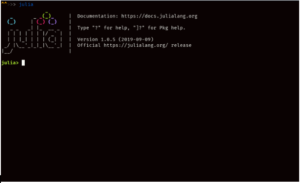
To exit the session, just type exit() and hit enter or use keyboard shortcut ctrl + D.
The REPL has 4 main modes of operation:
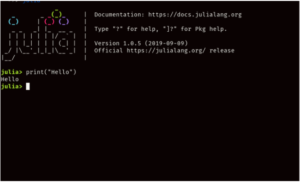
- Julia prompt — This is the default mode in which all newlines start with julia> . You can run any Julia code block in this mode.
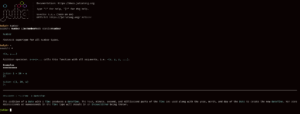
- Help mode — The Julia prompt can be switched to help mode by simply typing ? in a new line. You can get documentation for anything entered in this mode.
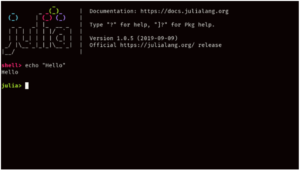
- Shell mode — Sometimes, we may want to use system shell to execute system commands, Julia offers a way to execute shell commands within the REPL . To access shell mode just type ; in a newline
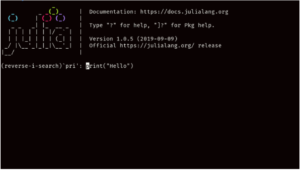
- Search mode — Julia REPL has a searchable history in which each line will be saved to a history file. To search through this history, just use the keyboard shortcut Ctrl + R
Packages in Julia
Julia offers a built-in package manager known as Pkg which handles operations like installing, updating, removing packages. Pkg can be accessed from REPL by typing ] in a newline.
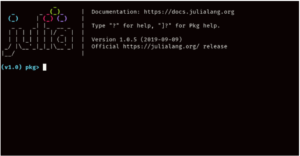
To exit the package manager, use the keyboard shortcut Ctrl + C.
Installing Packages
Use the add keyword to install the required packages.
(v1.0) pkg> add JSON StaticArrays
This installs packages JSON and StaticArrays
Updating Packages
Use the update keyword to update desired packages
(v1.0) pkg> update JSON
If you want to update all packages, then simply use the update keyword without any package names.
(v1.0) pkg> update
Removing Packages
Use rm keyword to remove packages
(v1.0) pkg> rm JSON
I/o methods for stdin and stdout
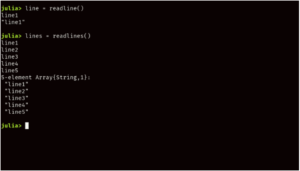
In Julia, data from the standard input stream(STDIN) can be read using readline or readlines
- readline — This method reads a line of text as String from the input stream (STDIN) until a ‘\n’ (newline) character is encountered.
- readlines — This method is used to read N lines of texts entered from the console as entries of a one-dimensional String array. Here lines must be delimited by a line break character (“\n”) or by pressing the “ENTER” key. To finish typing, press Ctrl-D.
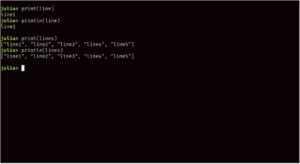
In Julia, data can be sent to the standard output stream(STDOUT) using either print or println
- print — Writes the given data to the output stream
- println — Writes the given data to the output stream and inserts a newline character (“\n”) at the end.
This is all that you need to know about Julia’s REPL, packages and basic I/O. In the next article, we will look into the variables and types in Julia.